This browser extension is an independent, community-developed project and is in no way affiliated with, endorsed by, or connected to Miacademy.co or its parent company. This is an unofficial extension created for the convenience of users.
My kids do their schoolwork on Miacademy.co, and I built this extension to give them a quieter version of it. It adds a popup to the browser toolbar with one checkbox for each part of the page a student doesn't need during a lesson. Check a box and that part of the page disappears without a reload.
Problem
I like Miacademy's lessons and learning tools. The interface around them gives a young student a lot to click on, though. The top navigation links to All Lessons and My World, the header has a Tutorial Videos menu, the sidebar has panels and a link to solved challenges, and a help button floats over the page. A kid halfway through a math lesson can click any of those and leave the lesson behind.
I wanted a way to hide those pieces one at a time and bring any of them back later.
Solution
Miacademy Element Hider is a small Manifest V3 extension for Chrome and Edge. It also loads in Firefox as a temporary add-on.
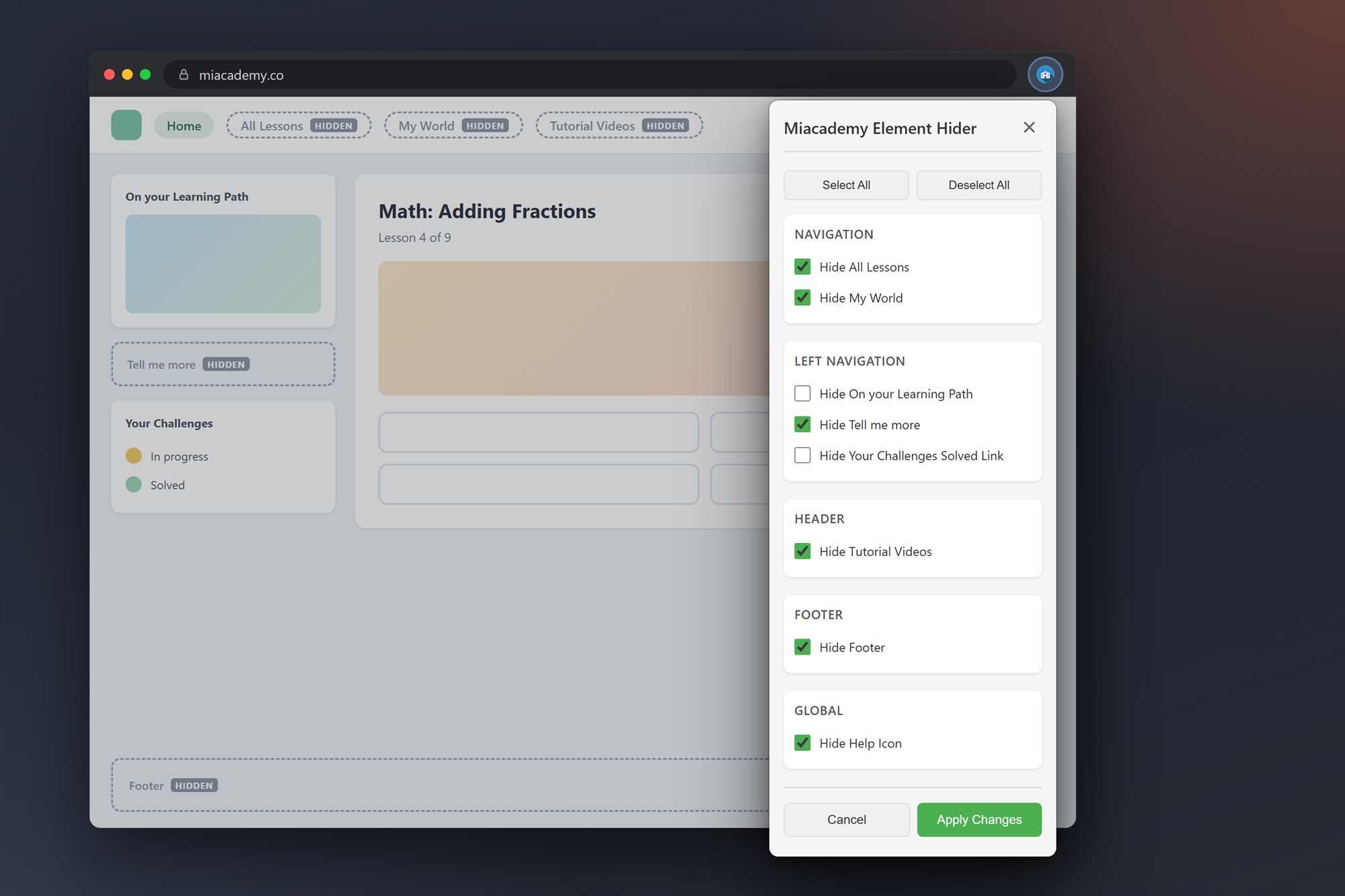
- Eight parts of the page to hide, grouped by where they sit. Navigation (All Lessons, My World), Left Navigation (On your Learning Path, Tell me more, the Your Challenges "Solved" link), Header (Tutorial Videos), Footer, and Global (the floating help icon).
- Changes apply as you click. Each checkbox saves your choice and updates the open page. By the time you press Apply Changes, the extension has saved everything, so that button only closes the popup.
- Select All and Deselect All. Select All hides all eight parts, and Deselect All brings them back.
- Settings follow the browser profile. The extension keeps your choices in the browser's sync storage, so they follow you to other computers signed in to the same profile.
- It only runs on Miacademy. It runs on
miacademy.coandwww.miacademy.co. It skips every other site, including Miacademy subdomains such asparents.miacademy.co.
The image above shows the popup with six of the eight options checked, over a sketch of a lesson page. Dashed outlines mark the parts the extension hides. On your Learning Path and the Solved link stay on the page because I left their boxes unchecked.
How it works
The extension is five files: the manifest, the popup (popup.html, popup.js, styles.css) and a content script (content.js) that runs on Miacademy's pages.
- The popup doesn't touch the page. It saves each choice to storage, then sends the content script on the open Miacademy tab a message listing what to hide.
- One selector per option. The content script keeps a map from each option to a CSS selector on Miacademy's page. It hides a match by setting
display: noneand remembers the element's originaldisplayvalue, so unchecking the box puts it back the way it was. - Lessons change without a page load. Miacademy swaps content in as a student moves between lessons, and the new content can bring hidden elements back. A
MutationObserverwatches the page and reapplies the settings after each change. - It works on tabs that were already open. If you install the extension while Miacademy is open, that tab doesn't have the content script yet. The popup injects it and sends the message again, so you don't have to reload.
- It checks the domain twice. The manifest limits the extension to Miacademy's two addresses, and the content script checks the page's hostname again before it hides anything.
It collects no data and makes no network requests. The only permissions it asks for are storage, activeTab and scripting.
I wrote about the build in more detail, including the selector map and why I chose Manifest V3, in Building a Browser Extension to Declutter Miacademy.co.
Limits
The extension depends on how Miacademy builds its pages. If Miacademy renames a class or rearranges a panel, the option that points at it stops working until I update its selector. The Solved link is the most fragile: its selector walks down seven levels of the sidebar and picks the second item in a list, so a change at any of those levels breaks it.
It isn't in the Chrome Web Store, so you install it by loading it unpacked.
Download and install
The code, docs and a troubleshooting guide are on GitHub at camyers/miacademy-browser-extension. You can also download the ZIP.
Chrome or Edge
- Download the ZIP and unzip it.
- Go to
chrome://extensions(oredge://extensionsin Edge) and turn on Developer mode. - Click Load unpacked and choose the unzipped folder, the one with
manifest.jsonin it. - Open miacademy.co, click the extension's icon in the toolbar, and check the parts you want to hide. If the icon isn't showing, pin it from the puzzle-piece menu.
Firefox
- Go to
about:debuggingand click This Firefox. - Click Load Temporary Add-on and choose
manifest.jsonin the unzipped folder.
Firefox removes temporary add-ons when it restarts, so you load it again after each restart.