This browser extension is an independent, community-developed project and is in no way affiliated with, endorsed by, or connected to Miacademy.co or its parent company. This is an unofficial extension created for the convenience of users.
As we were beginning our homeschool journey for my son, we stumbled upon Miacademy.co. If you haven’t heard of it before, Miacademy is a full K-8 homeschool curriculum that makes lesson planning simple. One subscription covers every subject (math, reading, science, social studies, electives, and world languages) and tracks progress and attendance.
The more we used the tool, the more I saw where my son was getting distracted and how easy it was within the platform for him to jump out of his current assignment. That’s where my extension idea came into play: a lightweight tool that allows me to hide or show some components on the site on a page by page basis.
My lightweight solution
The Miacademy Element Hider is a small Manifest V3 extension for Chrome and Edge, which can also be loaded in Firefox as a temporary add-on.
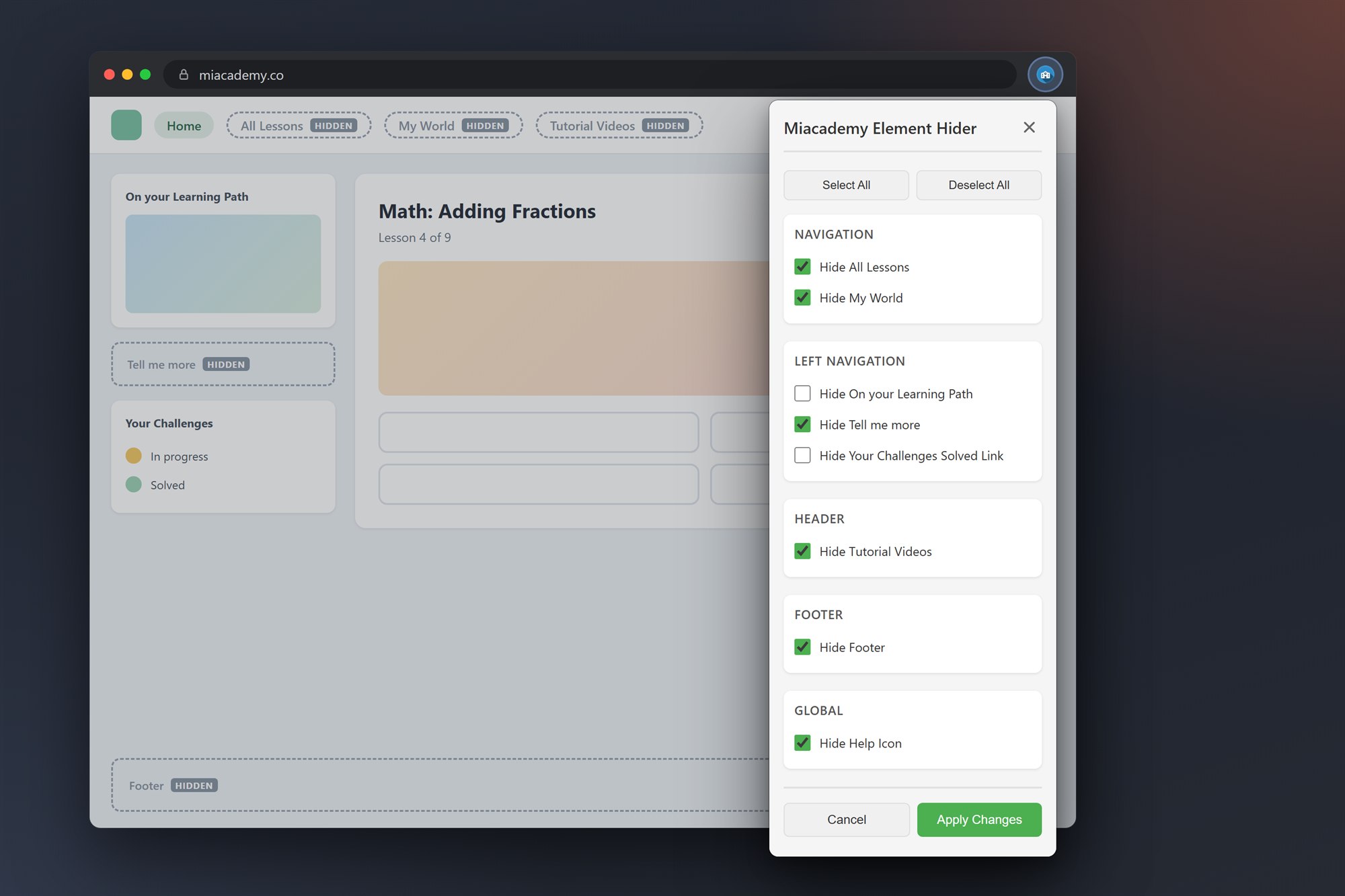
- Eight parts of the page to hide, grouped by where they sit. Navigation (All Lessons, My World), Left Navigation (On your Learning Path, Tell me more, the Your Challenges "Solved" link), Header (Tutorial Videos), Footer, and Global (the floating help icon).
- Changes apply as you click. Each checkbox saves your choice and updates the open page automatically. By the time you press Apply Changes, the extension has saved everything, so that button only closes the popup.
- Select All and Deselect All. Select All hides all eight parts, and Deselect All brings them back.
- Settings follow the browser profile. The extension keeps your choices in the browser's sync storage, so they follow you to other computers signed in to the same profile.
- It only runs on Miacademy. It runs on
miacademy.coandwww.miacademy.co. It skips every other site, including Miacademy subdomains such asparents.miacademy.co.
In the image above, you can see the popup with six of the eight options checked. The dashed outlines mark the DOM elements that the extension ends up hiding. On your Learning Path and the Solved link stay on the page because I left their boxes unchecked.
How it works
The extension is five files: the manifest, the popup (popup.html, popup.js, styles.css) and a content script (content.js) that runs on Miacademy's pages.
- The popup doesn't touch the page. It saves each choice to storage, then sends the content script on the open Miacademy tab a message listing what to hide.
- One selector per option. The content script keeps a map from each option to a CSS selector on Miacademy's page. It hides a match by setting
display: noneand remembers the element's originaldisplayvalue, so unchecking the box puts it back the way it was. - Lessons change without a page load. Miacademy swaps content in as a student moves between lessons, and the new content can bring hidden elements back. A
MutationObserverwatches the page and reapplies the settings after each change. - It works on tabs that were already open. If you install the extension while Miacademy is open, that tab doesn't have the content script yet. The popup injects it and sends the message again, so you don't have to reload.
- It checks the domain twice. The manifest limits the extension to Miacademy's two addresses, and the content script checks the page's hostname again before it hides anything.
The extension collects no data and makes no network requests. The only permissions it asks for are storage, activeTab and scripting.
Limitations of the extension
The extension depends on how Miacademy builds its pages. If Miacademy renames a class or rearranges a panel, the option that points at it stops working until I update its selector. The Solved link is the most fragile: its selector walks down seven levels of the sidebar and picks the second item in a list, so a change at any of those levels breaks it.
It isn't in the Chrome Web Store, so you install it by loading it unpacked.
Try it yourself
I wrote about the build in more detail, including the selector map and why I chose Manifest V3, in Building a Browser Extension to Declutter Miacademy.co.
If you’re wanting to give this a try for yourself, you can find an installation guide over on the GitHub link listed below.